Compliance Center — Track Deadlines, Severe Events, and ITA Preparation
Use EHSMNA to track OSHA recording deadlines, assess severe events, prepare reporting drafts, and validate ITA CSV files and external submission evidence.
On this page
Use Compliance Center to track recording deadlines, assess severe events, prepare private reporting drafts, and prepare annual files for OSHA's Injury Tracking Application (ITA). The app connects these controls with the OSHA 300, OSHA 301, and OSHA 300A applications while keeping each establishment and reporting year separate.
This article describes EHSMNA version 0.7.0 for EHS coordinators, safety managers, annual-reporting reviewers, and compliance administrators. Controls and review history are saved in the current browser. Government reporting, executive signing, and ITA upload take place externally.
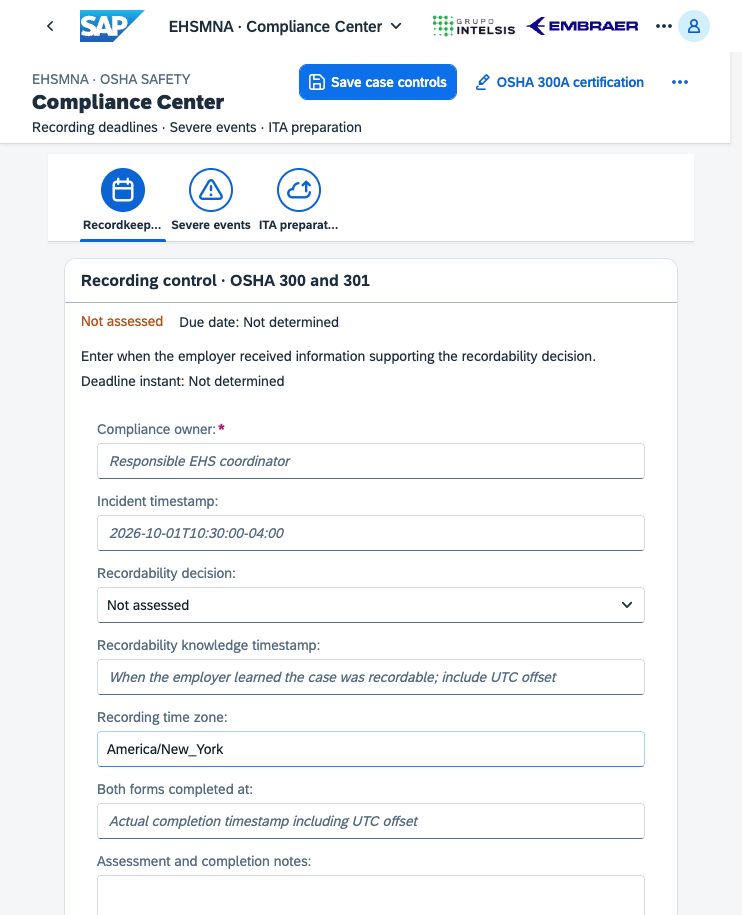
Use the recording control to review ownership, employer knowledge, recording time zone, and completion evidence for OSHA 300 and 301.
Open the app and select a scope
Select Compliance Center on the launchpad, or use the related action in an OSHA report app.
Select Reporting year and Establishment.
Select an Incident for case controls. The list includes recordable and nonrecordable incidents.
Enter Update recorded by. This is the person making the local update; it is not an authenticated workflow identity.
For case-control saves, enter Compliance owner on the Recordkeeping deadlines tab.
The three tabs are Recordkeeping deadlines, Severe events, and ITA preparation. Annual ITA preparation remains available even when the selected scope has no incident.
The header provides Save case controls, OSHA 300A certification, Open OSHA 301, Home, and Refresh. The annual and case report links retain the relevant scope. Unsaved changes trigger a confirmation before a scope change, refresh, or navigation.
Use the action queue and notifications
The Action queue shows the selected establishment and year's recording and severe-event tasks. Select an item to open its incident and relevant tab. Unknown information remains a review task; an empty event list is not assumed to mean that no reporting duty exists.
The app reevaluates displayed deadline statuses every 30 seconds while open. The launchpad's notification bell opens Compliance Notifications for browser-available cases and refreshes its count while the application is open. These are in-app alerts. They do not send email, run as a background notification service when the browser is closed, or report an event to OSHA.
Common statuses include Not assessed, Needs review, Not required, Open, Due soon, Overdue, Completed on time, Completed late, Reported on time, Reported late, and Covered by prior report. Completion and reporting statuses record the user's evidence entry; they are not independent verification by an authority.
Track the OSHA 300 and 301 recording deadline
Enter the employer's knowledge and recording facts
On Recordkeeping deadlines, complete Recording control · OSHA 300 and 301:
Field | How to use it |
|---|---|
Compliance owner | Name the responsible EHS coordinator. Required for a case-control save. |
Incident timestamp | Enter the actual occurrence date and time with a UTC offset. |
Recordability decision | Choose Not assessed, Recordable, or Not recordable after reviewing the facts. |
Recordability knowledge timestamp | Enter when the employer learned information establishing the recordability decision. Do not substitute the incident's creation date or sample report-preparation date. |
Recording time zone | Use an IANA time zone such as America/New_York for civil-date counting and daylight-saving changes. |
Both forms completed at | Enter the actual completion timestamp for both the OSHA 300 entry and OSHA 301 report. Leave blank until completion is confirmed. |
Assessment and completion notes | Explain the assessment and evidence supporting completion or a nonrecordable decision. |
Timestamps must include Z or an explicit UTC offset, for example 2026-10-01T10:30:00-04:00. Missing, invalid, unsupported, future, or contradictory facts require review. When the time zone is left blank, the engine uses the supplied timestamp's fixed UTC offset; use a named zone when daylight-saving behavior matters.
The app counts seven calendar dates after the recordability-knowledge date and permits completion through the seventh date. The deadline is assessed in the entered recording time zone. This implements the baseline recording period in 29 CFR 1904.29(b)(3). Due soon begins one day before the due date; that is the application's reminder threshold.
The compliance decision is a separate review control. It does not change the source incident's OSHA 300 classification. If it contradicts the source recordability value, the app shows Needs review and blocks a contradictory save. Resolve the source classification through the appropriate incident process.
Save or record completion
Enter Update recorded by and Compliance owner.
Select Save case controls. Incomplete assessments can be retained as drafts, with review history.
Use Open annual OSHA 300 or Open OSHA 301 to review the actual records.
After both forms are complete, enter the actual Both forms completed at timestamp and save, or select Mark both forms recorded.
The shortcut prompts for confirmation, records the current instant, and saves the controls. It does not create or inspect the regulatory records.
Expand Case control review history to see revisions, recorded times, recorder names, actions, and changed fields. Saved revisions help detect a stale editor; reload and reconcile if another tab has changed the controls.
Fill recording sample asks before filling fictional incident/knowledge times, ownership, and a decision consistent with the sample source. Review those sample facts and select Save case controls to retain them. Do not treat the sample's awareness time as evidence of real employer knowledge.
Assess severe events separately
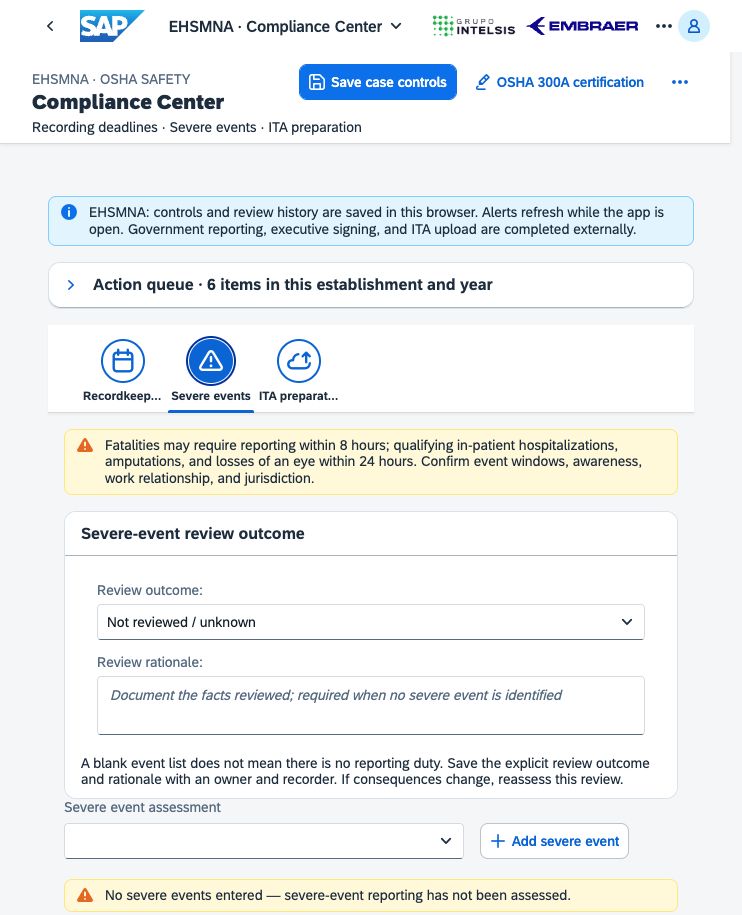
Severe-event reporting is assessed independently of the source OSHA-recordable checkbox. A case excluded from the log still needs an appropriate severe-event review. Federal OSHA rules are the application's regulatory baseline; review State Plan jurisdiction and additional requirements separately.
Record the review outcome
On Severe events, choose Review outcome:
Not reviewed / unknown leaves the review open.
Reviewed: no severe event identified requires a Review rationale, an owner, a recorder, and an empty severe-event list. Reassess if consequences change.
Severe-event assessments entered below is used when events are assessed. Selecting Add severe event selects this outcome automatically.
The outpatient laceration created by Fill sample is not a hospitalization example. For a worked example, describe any added severe-event facts explicitly as a separate fictional scenario.
Enter an event assessment
Select Add severe event.
Choose Event type: Fatality, In-patient hospitalization, Amputation, or Loss of an eye.
Enter Incident timestamp, Severe event timestamp, and Employer/agent awareness timestamp with explicit offsets.
Review Work related? as Unknown / needs review, Yes, or No. If recognized later, enter Work relationship recognized at. When this is blank and Yes is selected, employer awareness is used as recognition time.
For hospitalization, answer Formal in-patient admission for care or treatment?. Emergency-room treatment, observation, or diagnostic testing alone does not satisfy this assessment. Overnight stay is not the criterion.
Review Federal reporting exception and document Exception / assessment rationale if an exception is used.
Add Review notes, inspect the calculated status and deadline, and select Save case controls.
The app evaluates the following occurrence and reporting periods:
Event | Occurrence after the incident | Reporting period after the relevant awareness/recognition |
|---|---|---|
Fatality | Within 30 days | 8 hours |
Qualifying inpatient hospitalization, amputation, or loss of an eye | Within 24 hours | 24 hours |
The occurrence boundaries are inclusive. Reporting uses elapsed hours from the latest applicable event, employer-awareness, and work-relationship-recognition instant. Due soon starts two hours before the calculated reporting deadline; that is the application's reminder threshold. See 29 CFR 1904.39.
The supported exception choices are Public-road motor vehicle accident outside a work zone and Commercial or public transportation system. Unknown facts remain for review. An event outside the federal reporting window or a documented exception can make this report not required without removing other recordkeeping duties.
For a later related fatality or amputation, Prior timely hospitalization report for this same incident can explicitly link a timely, evidenced hospitalization report already entered for that case. The app validates the link before showing Covered by prior report. It does not extend this option to loss of an eye. Update OSHA 300/301 to the most serious outcome even when the later event is covered by the prior report. See the OSHA interpretation dated January 8, 2021.
Download a private reporting draft
Under Private notification preparation, review Contact person, Contact phone, Incident location, Affected employee names, and Brief incident description. Employee names can be separated by new lines or semicolons.
Select Download private reporting draft, review the privacy/missing-information prompt, and select Download private draft. The text file is clearly marked as a draft for manual reporting and contains private information. It includes establishment and incident facts, the event, affected employee count/names, contact details, deadline assessment, and any missing fields.
The draft does not notify OSHA, create reporting evidence, or change the event to reported. Save case controls separately to retain edited contact information. Handle the downloaded file under the organization's confidentiality and retention controls.
Record a report completed externally
After completing reporting through an authorized channel, expand Record a report completed externally and enter:
Actual OSHA report timestamp.
Reporting channel: nearest OSHA Area Office by phone/in person, OSHA central telephone line, or the OSHA severe-event online application.
Person who completed the report.
Confirmation / contact evidence reference.
Select Save case controls and reporting evidence. Valid assessment facts and the reporting evidence are required to claim completion. A draft download, email, fax, or voicemail alone is not evidence of completed reporting. The app stores the user's external-report claim; it does not verify the recipient or confirmation.
Prepare annual ITA files
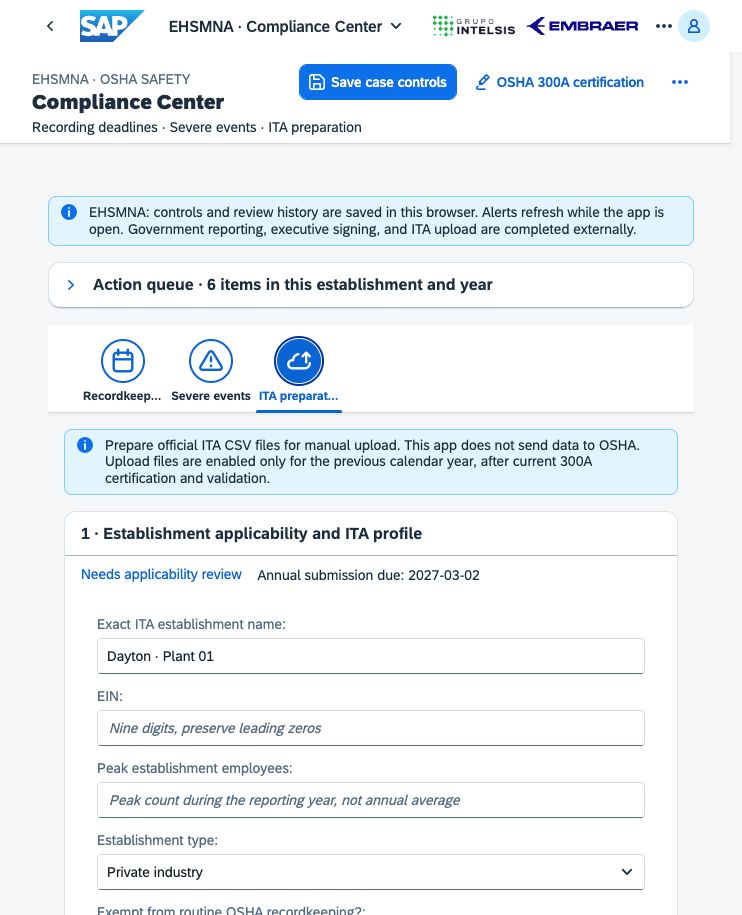
ITA preparation is annual and establishment-specific. Upload files are released only after applicable scope, certification, case, and privacy validations pass.
1 · Establishment applicability and ITA profile
Select the establishment and the previous calendar year. For the 2026 collection, select 2025. Current/future years and older collections can be reviewed as drafts but do not produce upload-ready CSVs. The app's annual business calendar uses America/New_York, matching its configured Ohio establishments.
Complete these profile fields:
Field or review | Required review |
|---|---|
Exact ITA establishment name | Match the establishment name used in ITA and across both form uploads. |
EIN | Nine digits without dashes; preserve leading zeros. |
Peak establishment employees | Peak count during the covered year. This is distinct from annual average employees on Form 300A. |
Establishment type | Private industry, State government, or Local government. |
Exempt from routine OSHA recordkeeping? | Resolve Yes or No; do not leave an unknown assumption. |
Industry listed in Appendix A to Subpart E? | Enter the reviewed applicability result. |
Industry listed in Appendix B to Subpart E? | Enter the separately reviewed result. |
Change reason (if amending prior data) | Supply a reason when applicable. |
Use the linked Official OSHA coverage tool and review Official ITA instructions. Select the two confirmations for applicability review and federal/State Plan jurisdiction review. The app checks size thresholds against these manually entered results; it does not maintain an authoritative NAICS industry list or decide coverage from the code alone.
The annual summary also needs a six-digit NAICS code, address, employment information, and other validated data. Annual submission due shows March 2 following the covered year. A passed deadline does not invent a receipt or prevent preparation during the supported collection year.
Enter Update recorded by and select Save ITA profile to retain the profile and its review history. This save is separate from Save case controls.
2 · Annual summary and certification
Check Current 300A workflow. If annual details have not been saved or the certification is not current, select Open OSHA 300A certification.
In that app, save the establishment/employment details, review the annual log and totals, and complete the workflow that records external eligible-executive certification against the current data version. Return to Compliance Center after saving. Entering an executive name, saving a PDF, or recording a reviewer's name does not sign the summary.
Upload CSVs require current external certification recorded for the exact annual snapshot. Changes to annual details, case data, or totals invalidate the prior certification and require renewed review.
3 · Review case text and medical answers
When case data is required, expand this panel and review every recordable case in the establishment/year:
Select Case to review for ITA.
Review Job title, Incident location, Short injury or illness description, and the four narrative fields.
Remove identifying information and use letters, numbers, and spaces supported by the app's upload validation.
Optionally select Suggest cleaned wording, then Insert suggestions. Suggestions replace draft text for review and preserve treatment answers. They remove unsupported punctuation but do not reliably remove identifying names or establish factual accuracy.
Answer Treated in an emergency room? and Formally admitted as an in-patient? independently.
Review Incident time: use Known — use the time in the incident report, or explicitly confirm Unknown — confirmed after review when appropriate.
Select Apply case review for this case. Repeat for each case.
Confirm I reviewed all export job, location, and narrative text and removed identifying information.
Select Save ITA profile.
ITA wording and answers are stored separately from the original incident. Apply case review updates the profile draft; Save ITA profile persists it. Unapplied edits block saving and preparation. Reset case edits returns the selected case to its last applied review after confirmation.
Unknown treatment answers block export. An overnight hospitalization answer of No does not establish that formal inpatient admission was No. Review the separate admission question from the facts. Any case-review change clears the privacy confirmation so the complete export wording can be reviewed again.
Identifying employee and health care fields are excluded from the case upload columns. Free text still needs human review; automated checks cannot detect every way a person might be identified.
4 · Validation and upload files
Select Validate preparation and resolve the listed validation actions.
Check applicability, previous-year scope, saved annual information, current certification, consistent totals and dates, unique cases, complete required medical answers, supported field lengths/text, and the privacy review.
Use Download draft validation (JSON) when you need a review record while actions remain. This JSON is a draft inspection file, not an ITA upload file.
Once ready and required for the scope, select Export ITA 300A CSV and Export ITA 300/301 CSV.
The app records preparation for the current data version and downloads the selected file. Its status indicates preparation for manual upload; no data is sent to OSHA.
The CSV headers match the official upload templates bundled with this version. The case template uses the column sex. Files use upload-specific dates and times; do not substitute a public-data download schema. Preserve EIN and ZIP leading zeros by reviewing CSVs as text or explicitly importing those columns as text.
A zero-case year can produce a zero-case 300A when applicable; the app does not generate an empty case upload. Validation blocks invalid/unknown values instead of silently truncating, inventing, or changing source facts.
5 · Record successful processing completed externally
In OSHA ITA, obtain successful processing for the 300A submission first, then upload required 300/301 case data using the same exact establishment name.
After the external confirmation is available:
Expand Record successful processing completed externally.
Choose Form data.
Enter Actual external submission timestamp with an offset and Successful processing reference.
Confirm that OSHA ITA successfully processed this exact data version.
Select Record external ITA confirmation.
Prepare that data version before recording its confirmation. The matching 300A confirmation must be recorded before a 300/301 confirmation. A downloaded CSV or an upload attempt is not successful-processing evidence.
Changing the profile, annual data, ITA case review, privacy review, or certification snapshot makes preparation and confirmations stale. The app shows Source changed and preserves history. Revalidate the changed version and review the external correction process; do not reuse an old confirmation as proof for new data.
Expand ITA preparation review history to inspect profile, preparation, and confirmation events, recorder names, timestamps, and data fingerprints. See OSHA's ITA instructions and guidance for the external process.
Troubleshooting
Symptom | What to do |
|---|---|
Deadline says Not assessed or Needs review | Complete the actual knowledge/assessment facts. The app deliberately does not infer awareness from incident occurrence or case creation. |
Save requests an owner or recorder | Enter Compliance owner and Update recorded by for case controls; enter the recorder for ITA profile/history actions. |
Recordability conflicts with the source | Resolve the source incident classification. The compliance dropdown is not an editor for OSHA 300 inclusion. |
Severe event remains unassessed with no events | Enter an event assessment or explicitly select the no-severe-event outcome with rationale. |
Hospitalization remains for review | Confirm formal inpatient admission for care/treatment. ER care, observation, and overnight status are separate facts. |
Reporting completion is rejected | Verify the event assessment, valid report time, permitted channel, reporter, and evidence reference. Do not enter a future or contradictory completion claim. |
ITA CSV buttons are disabled | Review the validation list, applicability decisions, previous-year scope, annual details, current certification, per-case answers, and privacy confirmation. |
ITA says there are unapplied case edits | Select Apply case review or Reset case edits, then save the profile. |
ITA has invalid narrative text | Review the exact identified field, remove identifying/unsupported content, and keep the meaning accurate. Suggestions require review and application. |
Missing inpatient answer after a No overnight answer | Answer the separate formal-admission question; the app preserves the uncertainty rather than substituting No. |
A 300/301 confirmation cannot be recorded | Prepare the exact current data and record successful processing of the matching 300A first. |
Source changed appears | Revalidate the new data version, renew certification when invalidated, and reassess external confirmations. |
A stale revision or storage error appears | Reload and reconcile with the saved browser record. Preserve existing data before repair; the app does not overwrite malformed history automatically. |
Other users do not see the same controls | The app stores these records in the current browser rather than a shared SAP workflow repository. |
Data storage and integration
Case controls, ITA profiles and events are stored in separate browser records. Annual details and certification also have records scoped to the establishment and reporting year. These local histories are not tamper-proof audits, electronic signatures, or authenticated SAP approvals.
Both local/BAS and SAP-hosted versions retain these storage limits. Clearing browser site data removes local work, and changing browser profile or origin exposes a separate dataset. Integration requirements include shared authorized persistence, authenticated identities, protected personal data, retention policies, reconciled Incident Management facts, jurisdiction handling, and any separately designed reporting/transmission service.
The app does not send severe-event reports, obtain executive signatures, post the 300A physically, log in to ITA, or verify OSHA processing. Those external actions must be completed and evidenced through the responsible process.
Related official guidance
Documentation scope: EHSMNA v0.7.0. Screenshots show sample information. Federal rules are the preparation baseline; the responsible reviewer must confirm applicability and jurisdiction for the actual establishment.
Related application guides
Was this article helpful?
Related articles
OSHA 300A — Annual Summary, Review, Certification and Posting
Prepare the annual OSHA 300A summary in EHSMNA, reconcile totals, export the official-format PDF, and track review, external executive certification and posting.
OSHA 301 — Review and Export an Individual Incident Report
Review an individual OSHA 301 report in EHSMNA, including employee and health-care information, incident narratives, OSHA 300 classification, and PDF export.
OSHA 300 — Review and Export the Annual Injury and Illness Log
Review the annual OSHA 300 log in EHSMNA, filter establishment and year, inspect classifications and days, navigate to OSHA 301, and export the official-format PDF.
Create Incident — Capture a Case for OSHA 300 and 301
Capture workplace incident facts, employee and health-care details, recordability, and work-impact dates in EHSMNA, then review the linked OSHA 301 report.