OSHA 300A — Annual Summary, Review, Certification and Posting
Prepare the annual OSHA 300A summary in EHSMNA, reconcile totals, export the official-format PDF, and track review, external executive certification and posting.
On this page
Application: OSHA 300A
Product: EHSMNA for SAP Fiori
Version covered: 0.7.0
Language: English
Last reviewed: October 27, 2026
Purpose
Use OSHA 300A to prepare an annual summary for one establishment and one calendar year, generate the summary PDF, and track the review, external executive certification and physical posting of that exact summary.
The app calculates the annual case totals from the case repository. You enter the establishment, employment and executive details separately. Workflow records are linked to a snapshot of the annual details, case data and totals, so a later change requires another review.
Annual-summary records remain in the current browser. A typed executive name, a workflow confirmation or a PDF download does not apply an electronic signature. The executive signs externally, and the app records the reference to that evidence. The app does not submit information to OSHA.
When to use this app
Use the app when preparing the annual summary after year end, checking totals against the OSHA 300 log, assembling a PDF for executive review, documenting external certification, or tracking posting evidence.
For covered recordkeeping establishments, federal OSHA requires the annual log to be reviewed, the summary to be prepared and certified, and the summary to be posted. A year with no recordable cases still needs the applicable annual process, with zero totals. Applicability and State Plan requirements must be assessed separately. Annual summary requirements, zero-case-year FAQ.
Use OSHA 300 for the individual log entries, OSHA 301 for one incident's detailed report, Create Incident to capture an incident, and Compliance Center → ITA preparation to prepare an eligible electronic-submission package.
Before you begin
Open EHSMNA in a browser with local storage enabled and use the same browser profile and site address throughout the process.
Select the establishment and reporting year you need to prepare. Do not combine locations or years in one annual summary.
Ensure the source cases have confirmed work relationship, recordability, outcome classification and injury/illness category. Resolve duplicate case numbers and inconsistent dates first.
Obtain the annual employment figures from payroll and time records. Incident counts do not determine employee averages or hours worked.
Use data permitted by your organization's access and privacy policies, including executive names, telephone numbers and evidence references. Store signed documents in an approved external document system; the app records their references rather than storing the signed evidence.
For the review and certification workflow, select a year that has ended. On October 27, 2026, 2025 is a closed-year example; 2026 remains a draft reporting year.
Open the application and select the scope
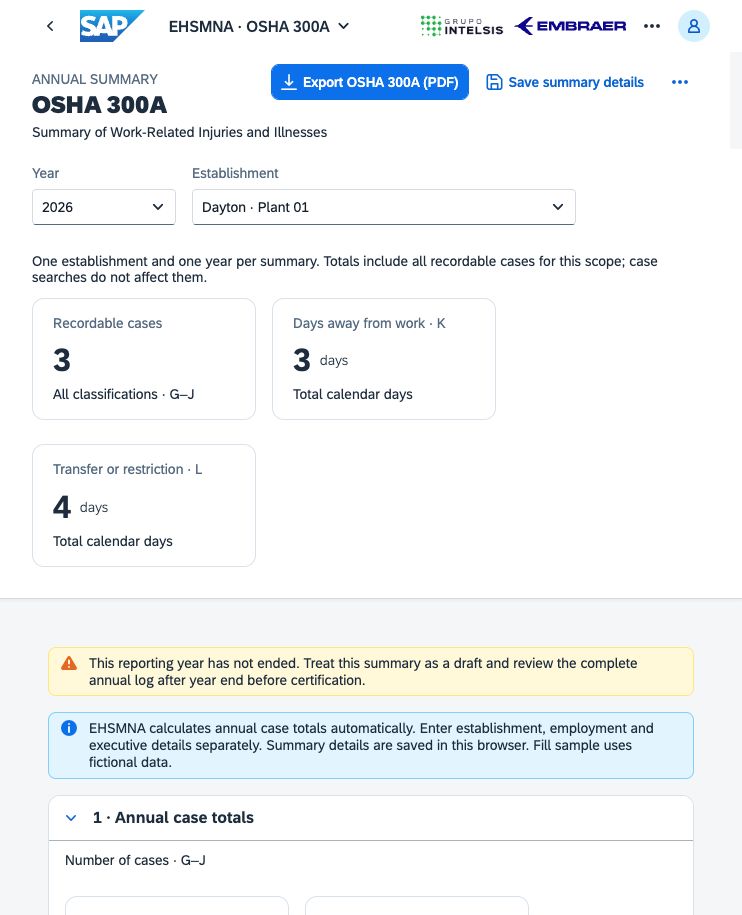
Open the EHSMNA launchpad and select OSHA 300A.
In Year, select the reporting calendar year.
In Establishment, select one establishment.
Wait for the totals and saved summary details to load.
Confirm the year and establishment before editing or exporting.
Expected result: the header displays the selected scope and the Recordable cases, Days away from work · K, and Transfer or restriction · L indicators. All recordable cases for that scope are included. A text search used elsewhere does not limit the annual summary.
The app warns before a scope change, refresh or navigation would discard unsaved summary edits. Select Cancel to remain on the page and save your work, or Leave to discard those unsaved edits.
Understand the calculated totals
The first two sections are calculated from the incident data. They are not editable in this app.
Section and field | Meaning in the application |
|---|---|
1 · Annual case totals — Deaths · G | Cases assigned to the death outcome. |
Days away cases · H | Cases assigned to the days-away outcome. |
Transfer or restriction cases · I | Cases assigned to job transfer or restriction. |
Other recordable cases · J | Other recordable cases. |
Days away from work · K | Total calendar days away stored for the included cases. |
Transfer or restriction · L | Total calendar days of restriction or transfer stored for those cases. |
Recordable cases | The total of G, H, I and J. Each case appears once using its most serious outcome. |
2 · Injury and illness types — Injuries · M1 | Recordable injuries. |
Skin disorders · M2 | Recordable skin disorders. |
Respiratory conditions · M3 | Recordable respiratory conditions. |
Poisonings · M4 | Recordable poisonings. |
Hearing loss · M5 | Recordable hearing-loss cases. |
All other illnesses · M6 | Recordable illnesses in the remaining category. |
Each recordable case contributes once to the outcome counts G–J and once to the injury/illness categories M1–M6. Days in K and L include the recorded periods for the included cases, rather than only the cases whose final outcome is H or I. Zero-case years display zero case, day and type totals.
Select View OSHA 300 to review the underlying annual log. The navigation preserves the reporting year and establishment. If a source case is corrected, return to the summary and select Refresh to reload the case list and recalculate totals.
Enter establishment, employment and executive details
3 · Establishment information
Complete these fields:
Field | Entry guidance and validation |
|---|---|
Company name | Required company name. |
Establishment name | Required name for the selected location. |
Industry description | Required description of the main business activity. |
NAICS code (if known) | Optional for this PDF preparation screen. If entered, use exactly six digits. ITA preparation has separate, stricter profile requirements. |
Street address | Required establishment address. |
City | Required establishment city. |
State | Required two-letter state code; the app converts this field to uppercase. |
ZIP code | Required five-digit ZIP or ZIP+4. |
4 · Employment information
Enter Annual average number of employees and Total hours worked by all employees as nonnegative whole numbers. Decimals, negative numbers and blank values do not pass the export and workflow checks.
These are annual figures for the employees covered by this establishment's log. If estimates are necessary, use the OSHA worksheet and its rounding guidance. The annual average is a different measure from the peak employee count requested in the ITA profile. OSHA recordkeeping forms and worksheet.
5 · Executive certification preparation
Enter Executive name, Title, Phone and Executive date printed on PDF. All are required for preparation. The date must be a valid calendar date and is displayed as MM/DD/YYYY.
The executive name and date entered here are preparation data. The exported PDF's signature remains blank. Obtain the executive's signed certification externally before recording certification in section 6.
Select Save summary details. The success message confirms that the details were saved in this browser for the selected establishment and year. Saving the details does not complete a review or certification step.
Fill sample inserts fictional establishment, employment and executive details, including 250 annual average employees and 500,000 hours. It does not change annual case totals. For a closed year, the sample executive date is today's date in the app's business time zone. For an open year, it uses January 15 of the following year. Save the sample details if you want to retain them.
Export the OSHA 300A PDF
Confirm the scope and calculated totals.
Complete sections 3, 4 and 5.
Select Export OSHA 300A (PDF).
Read the export dialog, including the year, establishment and certification reminders.
Select Download PDF.
Open the downloaded file and review the populated official form layout, totals, establishment information and executive preparation details.
Expected result: an OSHA 300A PDF is downloaded. The file is prepared from the entries currently displayed on the page. A PDF download neither saves unsaved summary details nor submits data to OSHA. The signature field is blank even if the workflow already records external certification.
A current-year PDF can be prepared for draft review. This does not override the closed-year requirement for the certification workflow. Do not present a current-year draft as the completed annual summary.
OSHA provides the official form package and instructions on its forms page. The app's PDF export and the ITA's structured submission are separate outputs. OSHA forms.
Complete the review, certification and posting workflow
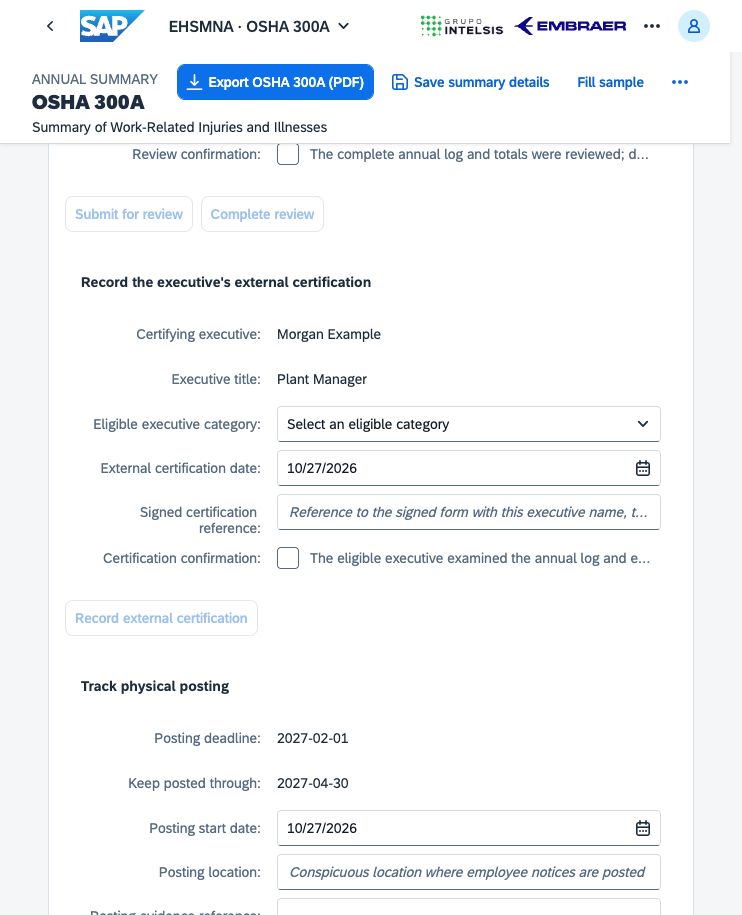
Expand 6 · Review, external certification and posting. The screen shows Workflow, Snapshot and Posting statuses, followed by review fields, certification evidence fields, posting fields and Workflow history.
The standard workflow stages are:
Draft → In review → Reviewed → Certification recorded → Posting tracked
Each step records the workflow recorder, a timestamp, the snapshot reference and the applicable notes or evidence reference. Entered names are not authenticated identities or protected approvals.
Step 1 — Submit the complete annual summary for review
Select a closed reporting year and complete all required summary details.
Enter Workflow recorder name.
Enter Assigned reviewer.
Enter Review notes, if useful.
Select Submit for review.
Expected result: the workflow becomes In review and a Review submitted entry appears in history. The current summary details are saved locally with the workflow snapshot. The app blocks submission when required details are incomplete, source totals are inconsistent or the reporting year is still open.
Step 2 — Record the review
Use View OSHA 300 to check the full annual log and correct deficiencies in the source data before continuing.
Return to the same year and establishment. Refresh if cases changed.
In Workflow recorder name, enter exactly the name in Assigned reviewer for the submitted review.
Select the Review confirmation checkbox: The complete annual log and totals were reviewed; deficiencies were corrected.
Add any review notes and select Complete review.
Expected result: the workflow becomes Reviewed and a Review completed entry is appended. A different recorder name or a missing confirmation blocks the step. The name match checks the entered values; it does not verify the person's identity.
Step 3 — Obtain and record the external executive certification
The certifying person must belong to an eligible executive category under the annual-summary rule. The app offers Officer of the corporation, Highest ranking company official at this establishment, Immediate supervisor of that highest ranking official, and Owner of a sole proprietorship or partnership. The actual eligibility decision belongs to the employer. 29 CFR 1904.32(b)(4).
Export the summary, arrange the required review and obtain the executive's signature outside this app.
Verify that the signed document represents this exact year, establishment, details and totals.
In Eligible executive category, choose the appropriate category.
Enter External certification date. It must match Executive date printed on PDF, follow the reporting year, be on or after the completed review, and not be in the future.
Enter Signed certification reference, identifying the external signed document. The app stores the reference text; it does not upload or store the signed document.
Select the Certification confirmation checkbox: The eligible executive examined the annual log and externally signed this exact summary as correct and complete.
Confirm Workflow recorder name and select Record external certification.
Expected result: the workflow becomes Certification recorded. History contains External certification recorded, with the certification evidence reference. This is a record of the user's external-certification claim, not an electronic signature or independent verification.
If the executive details or PDF date need correction, update them and complete a fresh review before recording certification. Do not change the preparation date merely to bypass a validation error.
Step 4 — Track the physical posting
The federal posting period runs from February 1 through April 30 of the following year. The signed summary is posted in the establishment where employee notices are normally displayed and protected from alteration or obstruction. 29 CFR 1904.32(b)(5)–(6).
Check Posting deadline and Keep posted through.
Physically post the signed summary outside the app.
Enter the actual Posting start date, Posting location and Posting evidence reference.
Select the Posting confirmation checkbox: The signed summary was physically posted and is protected from alteration, damage and covering.
Select Record posting start.
Expected result: the workflow reaches Posting tracked and records Posting started. A posting start date cannot precede the recorded certification or be in the future. A start after February 1 produces a persistent late-start warning; completing the process does not remove that warning.
Step 5 — Confirm the posting period
After the applicable April 30 date has been reached, verify the actual posting period.
Enter Posting completion date and Completion evidence reference.
Select the Completion confirmation checkbox: The summary was maintained until the recorded completion date; any late or missed posting is accurately documented.
Select Confirm posting period.
Expected result: the posting status becomes Completed and a Posting completed history entry is added. The completion date must be on or after April 30 and the posting start date, and cannot be in the future. The record preserves late or missed posting facts; it does not correct an earlier failure to post.
Understand statuses and change control
Display | Interpretation and next action |
|---|---|
Draft | No active completed review sequence for this snapshot. Complete the details and submit for review when the year has ended. |
In review | The current snapshot was assigned to a reviewer. Complete the full log review. |
Reviewed | The recorded reviewer confirmed the review. Obtain and record external executive certification. |
Certification recorded | External certification evidence was recorded for this snapshot. Track posting and, where applicable, continue to ITA preparation. |
Posting tracked | Posting has started or its period was completed. Read the separate posting status and dates. |
Review required (data changed) | The details, case data or totals differ from the reviewed snapshot. Complete a new review sequence. |
Unavailable | The workflow history could not be loaded or validated. Resolve the storage or data issue before continuing. |
Posting: Due / Overdue | Posting has not been recorded. The date determines whether the start is pending or overdue. |
Posting: In progress | A start was recorded and the posting window has not ended. |
Posting: Confirmation overdue | A start was recorded but the period has ended without completion confirmation. |
Posting: Completed | The user recorded completion with an evidence reference. Inspect any retained late-start warning. |
Changing annual details or source case data changes the snapshot. Previous review, certification and posting records remain in the history, but they cannot be treated as approval of a different summary. Even unsaved changes on the annual page can trigger snapshot invalidation. Save the intended corrections and begin a new review instead of relying on an older certification.
Workflow calendar dates use America/New_York, the configured business time zone for the Ohio establishments. History timestamps are stored and displayed as UTC instants, identifiable by the trailing Z. A local date in Brazil or another time zone can differ around midnight; use the app's business date when recording workflow dates.
Worked example: closed 2025 year and open 2026 year
As of October 27, 2026, use Year = 2025 and one establishment for a worked example with fictional data. Select Fill sample, save the details, compare the totals with OSHA 300, and submit a review to a fictional reviewer. Complete the review using that same reviewer name as the recorder. Use fictional certification and posting evidence only within this worked example; do not record sample evidence as an actual certification, posting action or approval.
For 2025, the displayed posting window is 2026-02-01 through 2026-04-30. A posting start recorded in October produces a late-posting warning and does not establish timely compliance. A real signed form certified in October cannot support an invented February posting start in this workflow.
Switch to Year = 2026 to show the draft-year warning. Summary preparation and PDF export remain available after required details are entered, while the review and certification workflow remains blocked until the reporting year has ended in the configured business time zone.
Continue to ITA preparation
Save the summary details and complete the current snapshot's review and external-certification recording.
Select Compliance Center. The year and establishment are carried to that app.
Open ITA preparation and review establishment applicability, profile data, privacy requirements and validation results.
Expected result: ITA preparation can use the annual details and current certification state. An outdated or missing certification blocks a ready-to-export package. A generated OSHA 300A PDF is not an ITA submission, and certification does not by itself establish ITA applicability. Electronic submission is a separate process. OSHA Injury Tracking Application.
Troubleshooting
Symptom | What to check |
|---|---|
Submit for review is disabled | Use a closed reporting year; complete all required summary fields; review validation messages. |
Annual totals fail to load | Resolve duplicate case numbers, unconfirmed recordability or work relationship, an invalid classification, inconsistent incident year or establishment, and invalid source case data. Use Retry after resolving the issue. |
Complete review fails | Enter the assigned reviewer as Workflow recorder name, check the review confirmation and make sure the submitted snapshot is still current. |
Certification date is rejected | Match the date printed on the summary; use a date after the reporting year, on or after the recorded review and no later than today in America/New_York. A date correction requires a new review. |
Record external certification is disabled | Complete review for the current snapshot first. |
Certification or posting evidence is rejected | Enter the required reference and confirmation, an eligible executive category where applicable, and valid chronological dates. |
Confirm posting period is disabled | Record posting start for the current certified snapshot and wait until the applicable April 30 date. |
Export is blocked | Complete the company, location, employment and executive fields. Use whole-number employment values, a valid state and ZIP, and a six-digit NAICS if one is entered. |
PDF download does not appear | Check browser downloads and download permissions; retry after reviewing any error in the export dialog. |
An edit changed the workflow to Review required (data changed) | Review the change, save the intended details, and repeat the review and external-certification evidence process for the new snapshot. |
Details or history are missing in another browser | Browser-local storage is separate for each browser profile and site origin. The local preview and the SAP-hosted URL do not share storage. |
History or storage error is shown | Existing saved content is preserved when its format is invalid. Do not clear browser data as the first recovery action. Preserve the error and request support. |
Nothing changed after a source correction | Save the source correction, return to the same annual scope, and use Refresh to load the current cases. |
Data storage, privacy and integration
The annual PDF summarizes cases and does not include the individual employee names or clinical narratives displayed in the detailed incident report. Company, establishment and executive contact details can still be sensitive. Use appropriate access controls and approved storage for downloaded PDFs and external evidence.
The app stores annual details and workflow history locally in the browser. Clearing site data, changing profile or using a different origin can remove or isolate those records. Workflow history records local review actions; it is not a tamper-proof audit trail, a protected document repository or a durable SAP business object.
The app does not authenticate reviewer or executive identity, apply a digital signature, verify evidence references, physically post documents, notify an executive in the background, create a SAP approval workflow or submit to OSHA. Hosting the UI in SAP does not make its browser-local records SAP Incident Management records. Integration with SAP Incident Management requires authoritative case data, identity, permissions, durable persistence, document retention and the required operational controls.
Related application guides
OSHA 300 — Review and Export the Annual Injury and Illness Log
Compliance Center — Track Deadlines, Severe Events, and ITA Preparation
References
Application procedures and labels were checked against the version 0.7.0 OSHA 300A view, controller, annual-summary validation and certification workflow implementation. Regulatory links provide the federal baseline; assess actual jurisdiction and applicability for the establishment being reported.
Was this article helpful?
Related articles
Compliance Center — Track Deadlines, Severe Events, and ITA Preparation
Use EHSMNA to track OSHA recording deadlines, assess severe events, prepare reporting drafts, and validate ITA CSV files and external submission evidence.
OSHA 301 — Review and Export an Individual Incident Report
Review an individual OSHA 301 report in EHSMNA, including employee and health-care information, incident narratives, OSHA 300 classification, and PDF export.
OSHA 300 — Review and Export the Annual Injury and Illness Log
Review the annual OSHA 300 log in EHSMNA, filter establishment and year, inspect classifications and days, navigate to OSHA 301, and export the official-format PDF.
Create Incident — Capture a Case for OSHA 300 and 301
Capture workplace incident facts, employee and health-care details, recordability, and work-impact dates in EHSMNA, then review the linked OSHA 301 report.